Showing posts with label favorite stores. Show all posts

Friday, October 9, 2009

How to Add Your Own Favorite Store

We have over 150 stores in our mall but we want to give you the opportunity to share your favorites - whether they are currently in our mall or not. So when you're choosing your favorite stores from our aphabetical directory, if one of your favorites is not among them, we give you a way to customize your list to add out of mall stores.

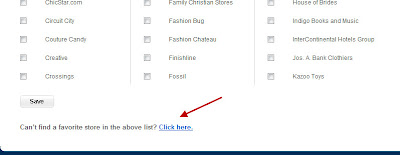
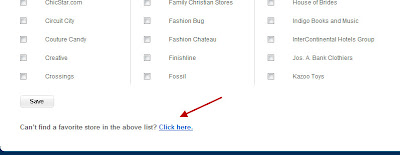
When you click the select favorite stores link on your profile page, you will see a customize link at the bottom of the directory page.


Note that our upload system only supports .jpg and .png images. Many logo's on web pages are in .gif or .bmp format. So if you can't find a logo in either of our two supported formats, one option is to do a google search for the logo of the store you want. Select the images link on google and type a search for the logo of say, Best Buy. Find a .jpg image of the logo and right click on the image to save it to your desktop.
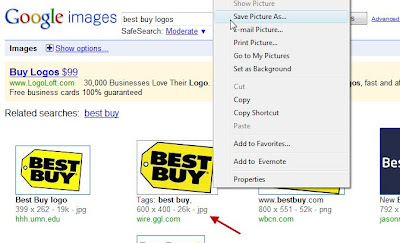

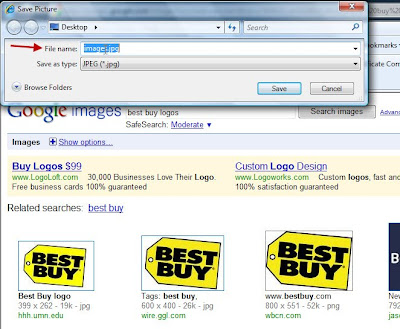
You may want to change the name from "images.jpg" to bestbuy.jpg so it will be easier for you to see and select later.

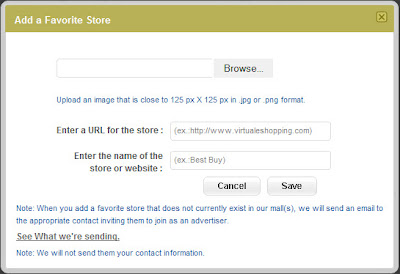
Next you'll upload the image from your desktop into the system by clicking the browse button on the upload screen.


If you've done it correctly, you'll see the logo in the upload screen. Then, enter the URL (web address) of the store (ex: http://www.bestbuy.com/) and the name of the store, "Best Buy."


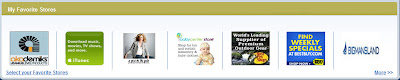
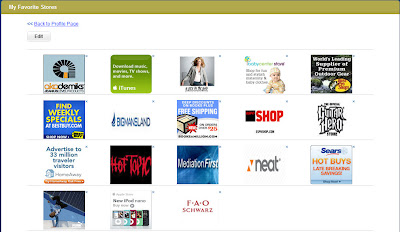
Then you'll see your logo appear in your favorite stores list of logos.


Cool, huh?! You can always change the order of your favorites and remember, only the first seven display on your profile page.

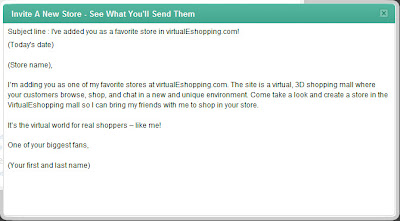
When you select a favorite store that is not in our system, we send them an email with your name (but not your contact information) that tells them you have added them as a favorite and invites them to put a store in our mall. You can see the email that is sent by clicking on the "see what you'll send them" link on the upload screen.

Have fun with this new social shopping tool and as always, let us know what you think at support@virtualEshopping.com.

-virtualEmark

Monday, October 5, 2009

My Favorite Stores

Share your favorite stores with your friends from our 150+ current roster of web retailers or add your own favorites if they are not currently in the mall. Once you select your favorite stores, they display at the bottom of your profile page.


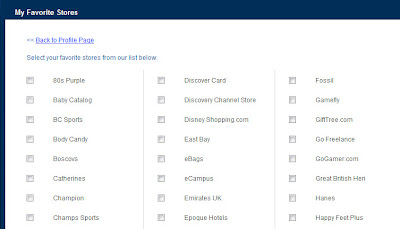
To create your personalized favorite stores list, click the "Select favorite stores" link on the bottom of your profile page. Then, select your favorites from our alphabetical list of stores and click the "save" button.


If you don't see one of your favorite stores as a participant in our mall, click the link at the bottom of the store selection page as highlighted below.


For your customized favorite store, upload an image of their logo as directed in the screen below, along with their web address and the name of the store.


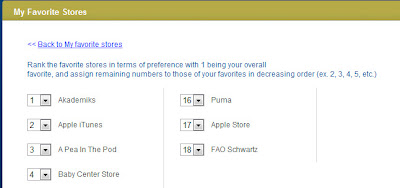
Next, select the order of all your favorites.

Note: Only your first seven (7) favorites will display on your profile page. The rest will appear in order on the overflow page accessed by clicking the "more" link on your profile page.


When you add a a customized favorite store that is not currently in our mall, we will send them an email on your behalf, inviting them to check out the mall to become a full member to create a storefront and other opportunities. (We will not give them your contact information.)


So have some fun and show your friends your favorite stores. Change them and move them around.
And as always, let us know what you think by commenting or emailing us at support@virtualEshopping.com!
-virtualEmark